Alpine Linux review – The desktop experience
Alpine Linux is designed to be a small, simple, and secure Linux distribution. For many, it’s the default choice for containerization. In fact, you might already be running an Alpine container somewhere as a part of a deployment without even knowing that it’s there.
I quite enjoy the ease of administration and the sans systemd part of Alpine Linux. I’ve never experienced any issues worth mentioning while running it. Alas, that was before I decided to turn Alpine Linux into a fully featured KDE Plasma desktop experience.

Welcome to Alpine Linux 3.21, stylishly dressed in KDE Plasma 6.
What makes Alpine Linux different
I think the official website sums it up well: “Alpine Linux is a security-oriented, lightweight Linux distribution based on musl libc and busybox”.
As an added benefit, keeping the distribution small, simple, and secure also keeps systemd out of the mix. However, how well do Alpine Linux’s musl libc and busybox work out when we move from servers to desktop systems? Are there any benefits in using musl and busybox compared to glibc and GNU coreutils used by most other distributions?
Out-of-the-box security features
In this context, out-of-the-box refers to being supported by the default installer. For personal usage, your mileage may vary, but these security features are usually required for enterprise usage.
| Version | SecureBoot | Encryption | SELinux | AppArmor |
|---|---|---|---|---|
| Alpine 3.21 | ❌ | ✅ | ❌ | ❌ |
Hardware
I’ve installed Alpine Linux on my 6-year-old XPS 13 7390 that once upon a time came pre-installed with Ubuntu Linux 18.04.
Manufacturer: Dell Inc.
Product Name: XPS 13 7390
Processors: 8 × Intel® Core™ i7-10510U CPU @ 1.80GHz
Memory: 15.3 GiB of usable RAM
Graphics Processor: Mesa Intel® UHD Graphics
Installation
Before getting started with Alpine Linux, new users should familiarize themselves with the Alpine User Handbook and the Alpine Linux Wiki. These resources might save new users some time and potential frustration, and are well worth skimming through.
Users can take advantage of the interactive setup-alpine installation script to have a base system ready to go in a few minutes. It’s straightforward and contains the options you’ll expect without any fancy GUI dialogs.
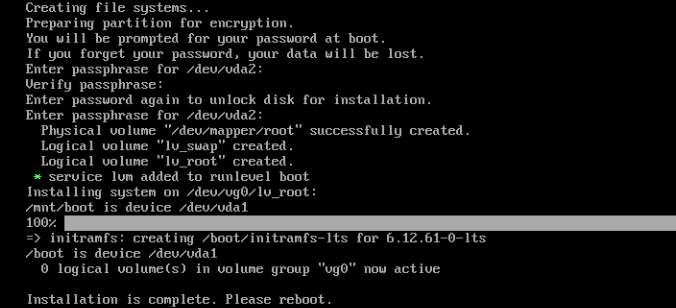
Well, that was both fast and easy. What’s next?
Configuration
Do you want X or Wayland, Gnome, KDE, XFCE, or maybe Mate? Alpine Linux offers a variety of configuration management scripts that do the heavy lifting for you.
Typing in setup-xorg-base / setup-wayland-base and setup-desktop in the terminal will provide you with an almost feature-complete Linux desktop in five minutes.
Be aware that setting up a desktop environment will require enabling the community repository. This means that the packages are not directly supported by, nor receive updates from, the Alpine core team.
Packages in community repository are those made by users in team with the official developers and close to the Alpine package process.
Source: Alpine Linux Wiki
The aforementioned configuration management scripts will install any kind of desktop flavour you desire and handle all the dependencies and relevant services. It’s a convenient and functional process that gives the user the perfect amount of freedom to choose their own building blocks.
Daily usage
So far, so good, so what. After playing around and making sure that my Alpine Linux KDE Plasma 6 installation was running smoothly, I decided to get some work done. I have a set of applications that I need to have on any system. Among those are the Tor Browser, and this is where I hit my first musl roadblock.
The Tor Browser, like a lot of software, is built for glibc and refuses to run on Alpine Linux. Some programs will run by installing gcompat (a library that provides glibc-compatible APIs for use on musl systems), but this is not a drop-in replacement for glibc and won’t work with the Tor Browser.
To circumvent the problem, I decided to deploy a Docker container for the Tor Browser and integrate it with the desktop environment. Four hours and a lot of Wayland issues later, and I finally had it running.
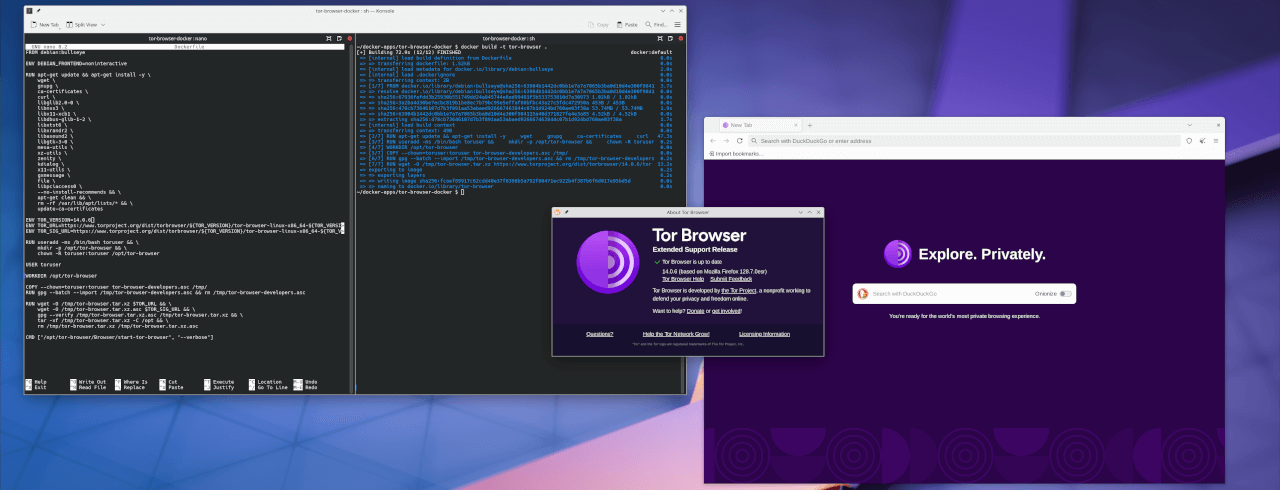
Running the Tor browser in a desktop-integrated Docker container on Alpine Linux.
On to the next one. However, I quickly decided not to repeat this Docker exercise, like ever, so I started looking for an alternative approach with JetBrains’ Rider IDE. Rider is available as a flatpak, which works fine on Alpine Linux, but it’s not from JetBrains themselves. Alas, since the binary does not run on Alpine Linux, I needed to containerize it.
Long story short, I ended up installing Distrobox as an alternative to manually configuring Docker containers.
Distrobox is a tool that lets you use different Linux distributions in containers with full integration with the host system.
I’ve never used Distrobox or comparative tools like Fedora’s Toolbox before, but I now fully understand the appeal of such tools. What set me back hours to configure manually with Docker was “magically” delivered upon a plate with a couple of commands in Distrobox.

Running the Tor browser from a Fedora container with Distrobox on Alpine Linux.
However, I now once more have a Fedora installation to take care of as the container base system. Preferably, I would avoid having to maintain multiple distributions with Alpine as the host, but I see no way around it apart from sideloading a full version of glibc. But then, what would even be the point in running Alpine Linux?
Apart from the initial software incompatibility issues I faced, Alpine has been chugging along nicely on my old Dell XPS for the better part of the year. It’s really a neat and simple system to manage and keep up to date. The Alpine Package Keeper (apk) is quick and easy to use, and offers the functionality you’d expect to manage your system, and nothing more.
Issues
Until recently, the only non-trivial issue I faced was SDDM (The Simple Desktop Display Manager) failing after an update, so I had to switch to LightDM. I believe the issue with SDDM was related to some systemd dependency, but I did not really bother to investigate.
My one real “what have I messed up now” moment came during the recent upgrade to Alpine Linux 3.23. That process ended prematurely and abruptly with an mkinitfs failure.
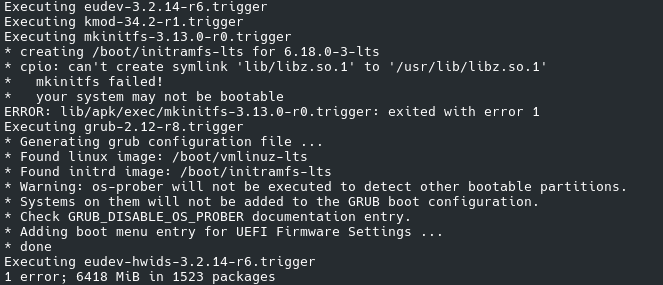
mkinitfs is failing during the Alpine Linux 3.23 release upgrade.
I have no idea how I walked into this one; perhaps it could be related to the new APK 3.0 version. The solution, at least for me, was to switch from BusyBox cpio to GNU cpio.
Anyhow, Alpine 3.23 has been the only release upgrade so far that, in my experience, was not “just working”.
Another minor issue I’ve faced with BusyBox’s Almquist shell is that the majority of my shell scripts are less POSIX-compliant than I imagined. Anyhow, that’s more of a me problem than an ash problem.
Conclusion
Is Alpine Linux suitable as a desktop environment? Well, like most things in life, it depends. Personally, I have enjoyed the experience for the most part, and it works well with my needs. However, it does feel a bit like fitting a square peg in a round hole. Alpine’s strengths as a minimal container system with musl and busybox feel wasted and even outright counterproductive on the desktop.
Still, Alpine Linux is stable, unassuming, and predictive to work with. Qualities I deeply admire (and usually miss) in a Linux distribution these days. If you do not need the proprietary NVIDIA drivers or depend on AppImages or snap, then by all means, Alpine Linux it is.
